

You just made a great video. It looks perfect. You're ready to post it everywhere — Instagram, TikTok, YouTube Shorts, LinkedIn, Twitter...
And then reality hits: every platform wants a different size.
Instagram feed wants 4:5. Reels wants 9:16. YouTube wants 16:9. LinkedIn prefers square. And if you post the wrong aspect ratio, you get those ugly black bars or, worse, the platform auto-crops your face out of the frame.
Sound familiar? Yeah, it's the most annoying part of being a content creator in 2025.
The Problem: One Video, Five Platforms, Five Sizes
Here's what most people do: open a full video editor (Premiere, DaVinci, CapCut), create a new project for each aspect ratio, manually reposition the video, export each one, and pray the file doesn't come out looking weird.
That's a lot of work for what should be a simple task.
What if you could just upload your video, see all the aspect ratios at once, adjust the crop, and export — all in your browser? No installs, no signups, no watermarks.
The Free Way: Renderly's Video Resizer
Renderly has a completely free tool that does exactly this: Social Media Video Resizer.
Here's how it works in two dead-simple steps.
Step 1: Upload Your Video
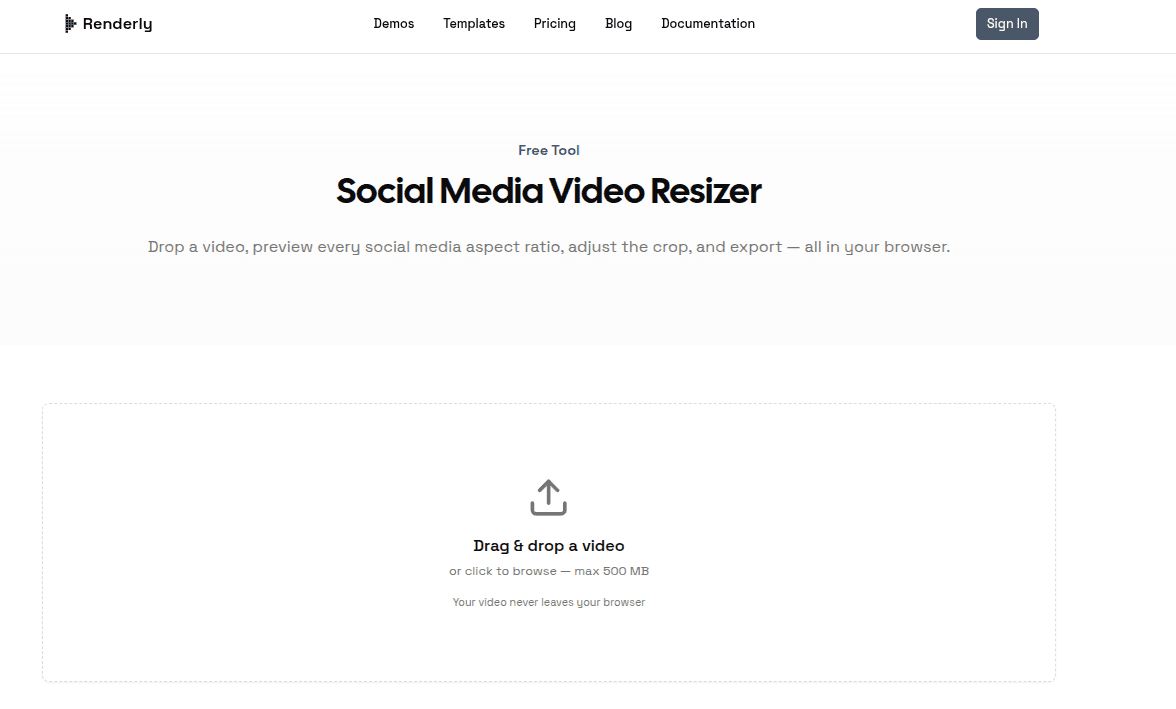
Head over to the Video Resizer and you'll see a clean upload area. Drag and drop your video (or click to browse). It supports files up to 500 MB.
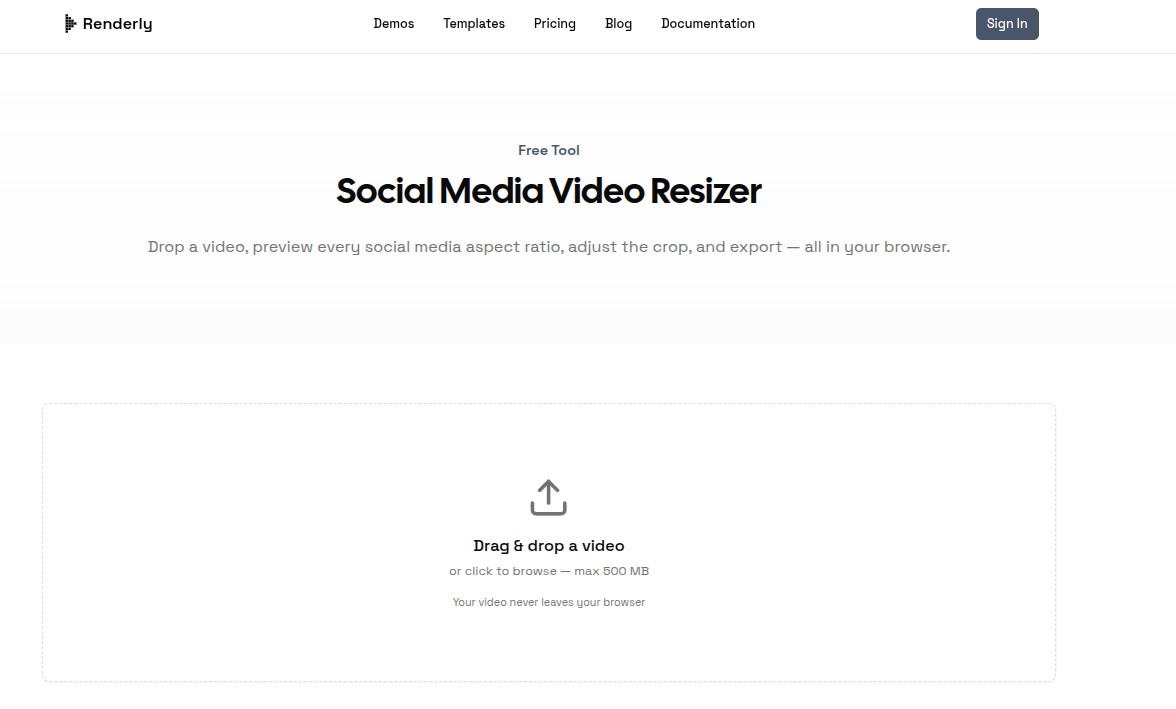
The best part? Your video never leaves your browser. Everything is processed locally, so there's no uploading to some random server and hoping your content doesn't end up who-knows-where.
Step 2: Preview, Adjust, and Export
Once your video is loaded, you'll instantly see it in multiple aspect ratios side by side — 1:1 Square, 4:5 Portrait, 9:16 Vertical, and 16:9 Landscape.
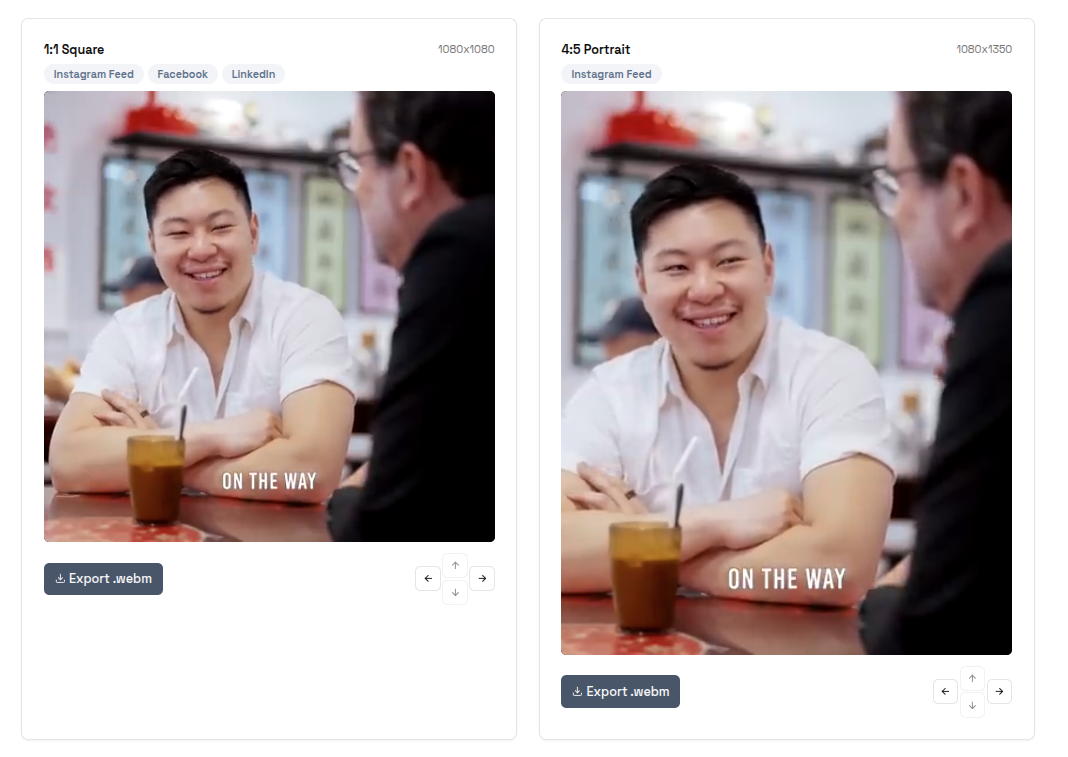
You can see exactly how your video looks in each format. Need to adjust the crop? Reposition it so the important parts stay in frame. When you're happy, hit Export and download the versions you need.
That's it. No re-encoding headaches, no subscription needed, no "sign up to remove watermark" nonsense.
Which Aspect Ratio for Which Platform?
Here's a quick cheat sheet so you don't have to Google this every single time:
| Aspect Ratio | Best For |
|---|---|
| 16:9 (Landscape) | YouTube, Twitter/X feed, LinkedIn video |
| 9:16 (Portrait) | TikTok, Instagram Reels, YouTube Shorts, Snapchat |
| 1:1 (Square) | Instagram feed, Facebook feed, LinkedIn feed |
| 4:5 (Tall Portrait) | Instagram feed (takes up more screen space = more engagement) |
Pro tip: If you're only going to make one version, go 9:16. Vertical video dominates social feeds right now, and most platforms will auto-adapt it. But if you want maximum reach across platforms, having at least a vertical and a landscape version is the move.
Why Not Just Let the Platform Crop It?
You can let Instagram or TikTok auto-crop your video. But here's what happens:
- Important text gets cut off
- Your face ends up half out of frame
- The composition looks unintentional and sloppy
Taking 30 seconds to properly resize gives your content a professional edge. And with a tool like Renderly's resizer, those 30 seconds are all it takes.
The Full Workflow: Trim First, Then Resize
Here's the workflow I personally use when repurposing content:
- Download the video — Grab the clip from YouTube or wherever with Vidtrimmer.
- Trim it — Cut out the exact segment you need using Vidtrimmer's built-in trimmer.
- Resize it — Drop the trimmed clip into Renderly's Video Resizer and export for each platform.
- Post everywhere — Upload the right size to each platform. No black bars, no weird crops.
This whole process takes under a minute. Seriously.
Final Thoughts
Resizing videos for social media used to mean opening a full editor and doing repetitive busywork. Now you can do it in your browser, for free, in seconds.
If you're a creator posting to multiple platforms (and you should be), bookmark these two tools:
- Vidtrimmer for downloading and trimming clips
- Renderly Video Resizer for converting to every aspect ratio
Your content deserves to look good everywhere — not just on the one platform you happened to edit for.
FAQs
Is Renderly's Video Resizer really free? Yes, 100% free. No account required, no watermarks, no limits on exports.
Does my video get uploaded to a server? Nope. Everything is processed locally in your browser. Your video never leaves your device.
What's the max file size? You can upload videos up to 500 MB.
What formats are supported? MP4 works best, but most common video formats (MOV, WebM, etc.) should work fine.
Can I resize a video I trimmed with Vidtrimmer? Absolutely — that's the ideal workflow. Trim the clip first with Vidtrimmer, then resize it with Renderly for each platform.
Do I need to resize for every platform? You don't need to, but it makes a noticeable difference in how professional your content looks. At minimum, have a 9:16 (vertical) and a 16:9 (landscape) version.